How do I create an album and upload media?

  • Thread starter Thread starter Biddlin
  • Start date Start date
B

Biddlin

Guest
Help, I can't see how to upload pictures to an album or even create one. I go to the add media page and can't see any "enter function.
 
This may be tough...

On the Main Page go to the bottom right and you should see "Your Statistics"

Under that you should see "Your Albums" and a number. You should be able to click the number...

When you click the number it will take you to another page. It is the "Album" page.

At the top right there should be a button "Add Media" click it...

It will take you to the next page where it will say "Add Media To...

Select "An Album" and click in the blank black space...

It should drop down with the choice to "Create an Album"

Try it and let me know....
 
Heck, I managed to do it, and I'm just a poor hillbilly in the arse end of Australia!!! But yeah, took me a bit of time and effort to work it out too... Good luck mate!
 
I think I got it.
Heck, I managed to do it, and I'm just a poor hillbilly in the arse end of Australia!!! But yeah, took me a bit of time and effort to work it out too... Good luck mate!
Met a gorgeous blonde nurse named Mavis, from Perth at the doctor's office. Her accent gave her away...
 
Biddlin, you know you can also upload a photo directly in your post, by simply clicking the UPLOAD A FILE button, at bottom of the message window.
 
Managed to actually do an album of some photos. But I have no bloody idea how to post a picture in a thread. One step forward, two steps back. I have my .45 on standby.o_O
 
Have no idea how to do that with a phone. Sorry, I cannot afford WiFi and no dial-up as I no longer have a landline. So I cannot use my computer on the net thing. Oh well. .... But thanks for the reply!
 
This is going to be a little long-winded, but unfortunately I don't think I could cut corners.

If you have a smartphone you can download the photo bucket mobile app. (Just look it up on your internet browser, and you should be able to download it to your phone.
Download it, press the icon on your phone screen, and it should start up.

First of all after downloading the app, you need to register. If you had photo bucket on your computer, you can log in with the same name and password.
If that's the case all your old pics that were previously uploaded there, should start to appear on your photo bucket app.
Here's a screenshot with my photo bucket... Note the blue upload button on the top right corner.

pb1.png

You can take new photos with your cellphone camera and upload them directly to your bucket to save space on your phone's memory too.
When your pics are uploaded, touch the one you want to share on a website/forum etc. You'll see a button at the bottom right of the pic saying "share".

Touch that, and a pop up menu will appear, with the following:
Facebook
Twitter
Get Links
Email.

Touch "Get Links" and you'll get a new page with a heap of internet address boxes, called "Links To Share"

pb2.png

Choose which format you want to post, and touch that address bar.

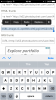
I've touched the IMG field, and highlighted it to accept the full URL (address). Some photo bucket app formats may just have a popup at the bottom of the screen saying "Link Copied" or something similar.
pb3.png

Once you've highlighted the field (or got the message "Link Copied"), you can navigate back to the page you wanted to post the picture on, such as "The Tone Rooms", and touch the field you wish to add the picture to, as if you're going to type something.
You should come up with the following menu on the screen where you have touched: [Select, Select All, Paste, Look Up.]

Click "Paste" and the pic will start uploading to the page. You'll get a box at the bottom of the page showing the picture when it's uploaded.
Touch the part of the page you want the picture to appear.
Click on thumbnail or full image, and it should appear there.
Then click "Post Reply" as per normal, and you should have pictures on your post!

Any problems, please PM or email me.

;)
 
Last edited:
Alex, I know you really worked hard on this and I appreciate it. However, that all looks like something from landing procedures for the space shuttle. I am beyond lost.:blink:
 
It essentially works the same as the desktop version you were using when you had your computer. Just instead of using a mouse to make selections, you use your finger.
I'm sure if you had a look at it on your phone, you'd have it worked out lickety split... ;)
 
I've tried repeatedly with zero result other than shear frustration. If I try any further I will shatter my phone against the wall. I'm old, grumpy, and despite technology. :coffee:
 
Back
Top